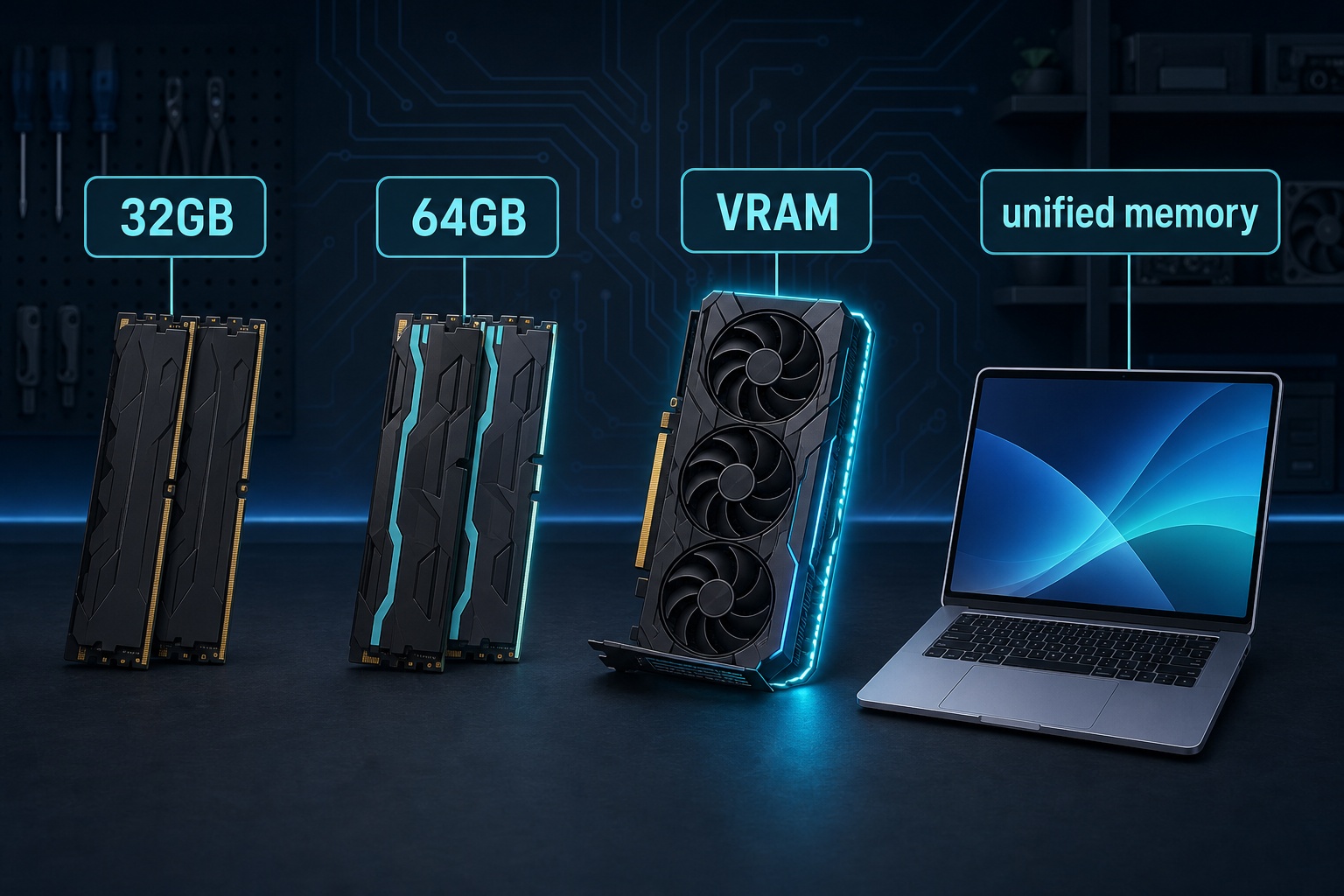
The 32GB vs 64GB RAM for local AI question hinges on one thing most guides skip: which part of your machine actually runs the model. If a dedicated graphics card does the work, 32GB is plenty: put the extra money into VRAM, not more RAM. Buy 64GB only if you run an Apple Silicon Mac, run models on the CPU, or want 70B-class models and long documents.
The trap is assuming system memory limits every setup. It doesn't. On a normal PC with a discrete GPU, the model loads into the card's own memory, so doubling your RAM barely changes what you can run. The 32-vs-64 fork only decides things in two situations, and this guide sorts out which one you're in.
Why RAM Matters for Local AI
When you use an AI service in the cloud, the model sits on the provider's servers, and their memory is the only memory doing any work. Running the same kind of model on your own computer moves that whole burden onto your hardware — it now has to store the model and keep it fed while you use it. That shift is the reason memory, of all the parts in a machine, becomes the spec that shapes your local-AI experience.
A model isn't a program that runs for a moment and closes. It's a large, fixed collection of trained numbers that the software loads once and then keeps resident for as long as it's ready to answer, because the processor builds every reply by reading across that collection. Everyday software rarely leans on memory this way. Local AI does constantly, and that steady, resident demand is what the rest of this comparison is really about.
32 GB vs 64 GB RAM for Local AI
It's tempting to treat this like any other memory question and reach for the bigger number for peace of mind. Local AI doesn't reward that reflex evenly — the jump transforms some builds and barely registers on others. A better way in is to name the heaviest job you honestly expect to hand the machine — the biggest model, the longest documents, the most tools running together — and then buy the tier that clears it rather than the tier that sounds safe. The sections that follow pin down exactly which tier that is for your build.
The Short Answer, by Setup
Match your hardware to the row below, then read the sections that apply to you. The recommendation flips entirely on whether a graphics card or your system RAM holds the model.
| Your setup | Buy 32GB or 64GB | Why |
|---|---|---|
| PC + discrete GPU (16GB+ VRAM), 7B–14B models | 32GB | Model lives in VRAM; system RAM barely matters |
| PC + discrete GPU, want 70B via CPU offload | 64GB | Spilled layers land in system RAM |
| Apple Silicon Mac | 64GB | RAM is also your VRAM: and can't be added later |
| CPU-only inference (no discrete GPU) | 64GB | The whole model sits in system RAM |
| Also run Docker, VMs, or heavy RAG/document work | 64GB | Context and background apps eat the headroom |
| Casual use, small models, can upgrade later | 32GB | Cheaper; add more only when you hit the wall |
Which Part of Your Machine Actually Runs the Model
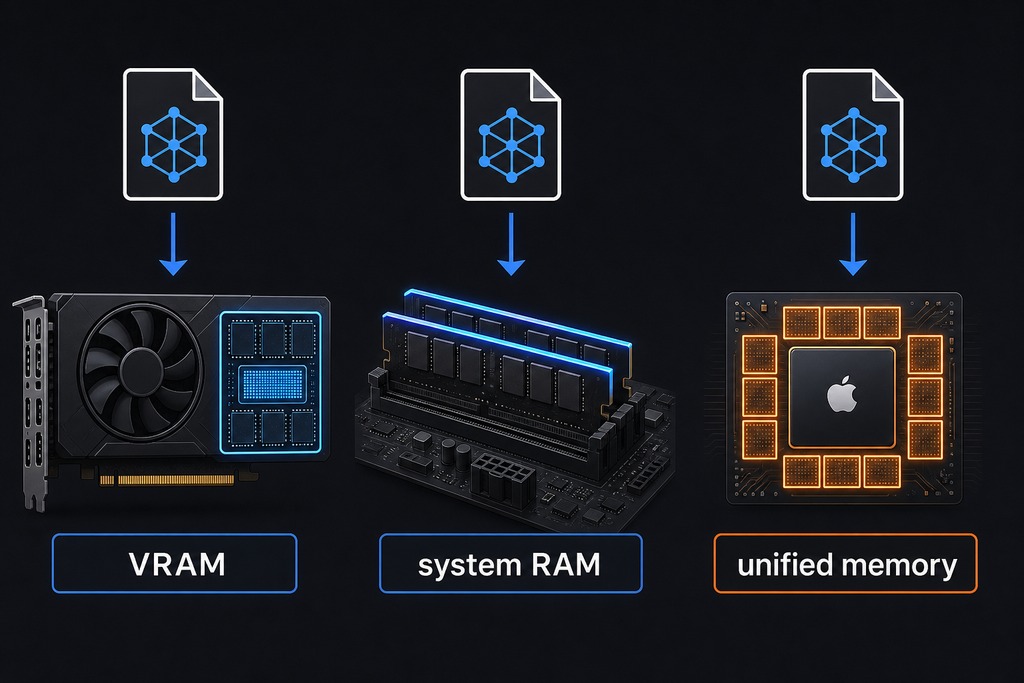
Three different memory pools can hold an AI model, and which one you have decides the whole question. Sort out yours before you spend a cent on RAM.
- VRAM: memory soldered onto a discrete graphics card (8GB, 12GB, 24GB). On a Windows or Linux PC, this is where the model runs.
- System RAM: the DDR5 or DDR4 sticks on your motherboard. For AI it only holds the model during CPU-only inference, or when layers overflow a too-small GPU.
- Unified memory: Apple Silicon's single pool shared by CPU and GPU cores. Here, system RAM is your VRAM.
On a PC with a discrete card, the model loads into VRAM, and system RAM has little say over what you can run or how fast it generates. A 24GB RTX 3090 or 4090 with 32GB of system RAM runs circles around a machine with 64GB of RAM but an 8GB card. RAM does not substitute for VRAM. The picture only flips when there's no capable GPU to hold the weights, CPU-only rigs and Apple Silicon Macs, because then the model has nowhere to go but system memory. That's the one case where 32-vs-64 is the whole ballgame.
32GB vs 64GB at a Glance
64GB unlocks 70B-class models and long-context work; 32GB covers the 7B–14B models most people actually run day to day. Everything between those poles is a judgment call about model size and multitasking.
| Factor | 32GB | 64GB |
|---|---|---|
| Small LLMs (7B–14B) | Runs great, high precision | Runs great |
| Medium LLMs (30B–34B) | 4-bit only, tight headroom | 8-bit, comfortable |
| Large LLMs (70B) | No | Yes, at 4-bit |
| 100B+ dense models | No | Usually no |
| Image generation (SD, FLUX) | Fine | Fine; helps big workflows |
| Multitasking with AI | Limited headroom | Comfortable |
| Long context / RAG | 4k–8k tokens with big models | 32k+ tokens |
| Typical DDR5 kit price | ~$50–$120 | ~$100–$280 |
What Each Capacity Can Actually Run
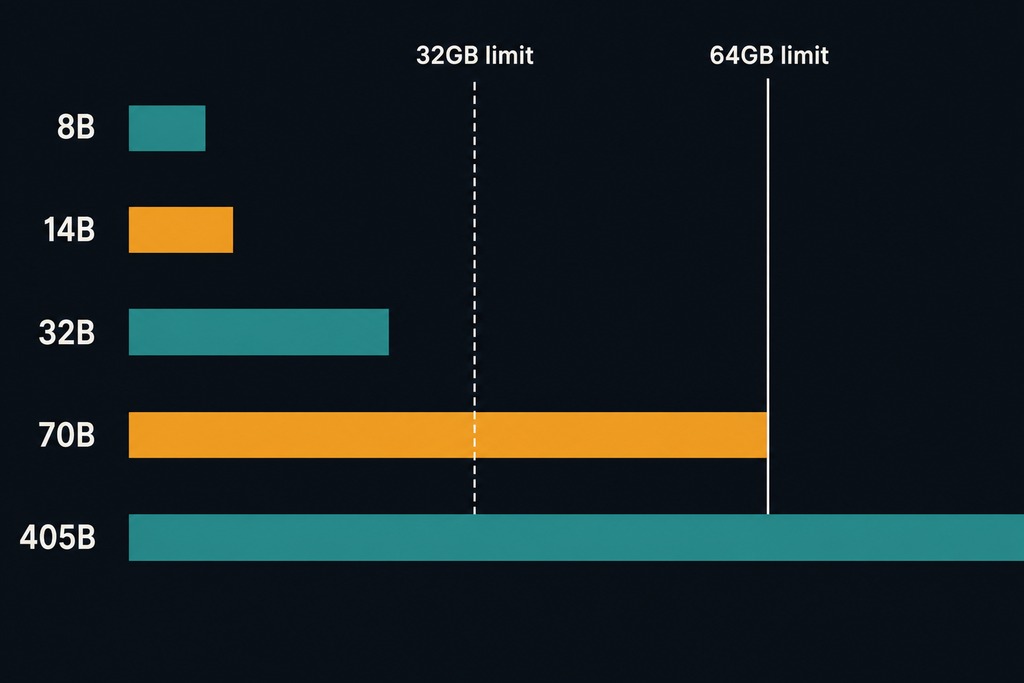
Model weight size, not raw ambition, decides what fits. llama.cpp's own quantization tables put Llama 3.1 at 4.9GB (8B), 43.1GB (70B), and 249.1GB (405B) at Q4_K_M: the common 4-bit format. Those are weights only; the OS and your context window stack on top.
| Model | Quantization | Approx. memory | Fits in 32GB? | Fits in 64GB? |
|---|---|---|---|---|
| Llama 3.1 8B | Q4_K_M (4-bit) | 4.9 GB | ✅ Easily | ✅ |
| Llama 3.1 8B | FP16 (16-bit) | ~16 GB | ✅ | ✅ |
| 14B | Q8_0 (8-bit) | ~15 GB | ✅ | ✅ |
| 32B | Q4_K_M | ~20–22 GB | ⚠️ Tight | ✅ |
| 32B | Q8_0 | ~34 GB | ❌ | ✅ |
| Mixtral 8x7B | Q4_K_M | ~24–26 GB | ⚠️ Tight | ✅ |
| Llama 3.1 70B | Q4_K_M | 43.1 GB | ❌ | ✅ (tight) |
| 70B | Q5_K_M | ~49 GB | ❌ | ✅ |
| 70B | Q8_0 | ~74 GB | ❌ | ❌ |
| 100B+ dense | Q4 | 60+ GB | ❌ | ⚠️ No room left |
| Llama 3.1 405B | Q4 | 249.1 GB | ❌ | ❌ |
The hard boundary: 32GB cannot run a 70B model usefully. Force it with extreme 2-bit compression and the model goes incoherent; spill weights to your SSD and generation drops to an unusable 1–2 tokens per second. At the other end, 64GB doesn't reliably run the largest 100B+ dense models either: they need 60GB+ and leave nothing for context or the OS.
Why "It Fits" Isn't the Whole Story
The weights are the baseline, not the total. Two more claims on memory sit on top of every model you load, and they're exactly what push a 30B model on a 32GB machine into swap.
- OS and background apps: 4–8GB on Windows or macOS before you open anything.
- KV cache (your context window): grows with the length of the conversation or document. A 32k–128k-token context can add 5–20GB or more on a large model.
- Usable headroom: figure roughly 22–27GB free on a 32GB machine after the OS, and 50–58GB on a 64GB machine.
- Where RAG spends it: feeding whole PDFs, codebases, or retrieval databases into context is a KV-cache cost. This is the work that quietly overflows 32GB while running a 30B model.
A 70B model at Q4 technically "fits" in 64GB: 43GB of weights leaves high-teens of gigabytes for context, runtime buffers, and the OS. Comfortable it is not. You may still need to shorten the context or quantize the KV cache.
32GB RAM: The Sensible Baseline
32GB is the right buy for anyone whose graphics card does the heavy lifting and who lives in the 7B–14B range: that's most people. It runs those models at 8-bit or even full FP16 with room to spare, and handles 30B–34B models at 4-bit with modest context.
Pros:
- Runs 7B–14B models at high precision with long context to spare
- Handles 30B–34B models at 4-bit (~20–22GB)
- Cheaper (~$50–$120 for a fast DDR5 kit), freeing budget for VRAM
- Easier to hit high DDR5 speeds with a two-stick kit
Cons:
- Cannot run 70B-class models: they need ~43GB for weights alone
- A big model plus a big document pushes it into swap (1–2 tokens/sec)
- Little room for Docker, VMs, or browser tabs while a 30B model is loaded
Verdict: Best for GPU-equipped builders running 7B–14B models who can add a second RAM kit later if they ever hit the wall.
64GB RAM: The Enthusiast Tier
64GB is the call when system RAM, not a graphics card, holds the model, or when you want the 70B-class models that jump a tier in reasoning. It fits a 70B model at 4-bit with room left for a 32k+ context, and runs 30B–34B models at 8-bit for cleaner output.
Pros:
- Runs 70B models at 4-bit (~43GB) with headroom for large context
- Runs 30B–34B at 8-bit for higher output quality
- Handles RAG over large document sets and multiple loaded models
- The only path to 70B on Apple Silicon or CPU-only rigs
Cons:
- Does not make small models run faster: bandwidth sets speed, not capacity
- Four-stick kits can force lower DDR5 speeds on consumer boards
- Won't run the largest 100B+ dense models, and won't enable real training
- Roughly double the price for capacity many buyers never use
Verdict: Best for Mac buyers, CPU-only inference, 70B-model users, and anyone running heavy RAG or several AI services at once.
Apple Silicon Macs and the Mac Studio
On an M-series Mac, system memory is graphics memory, so this choice matters far more than on a PC: and you can't fix it later. Each tier maps straight to a model ceiling, because unified memory serves the GPU cores that do the inference.
| Mac unified memory | Largest model it runs comfortably | Notes |
|---|---|---|
| 16GB | 7B–8B at 4-bit | OS takes a big share; entry only |
| 32GB | Up to ~30B at 4-bit (~21–24GB usable) | Solid all-rounder |
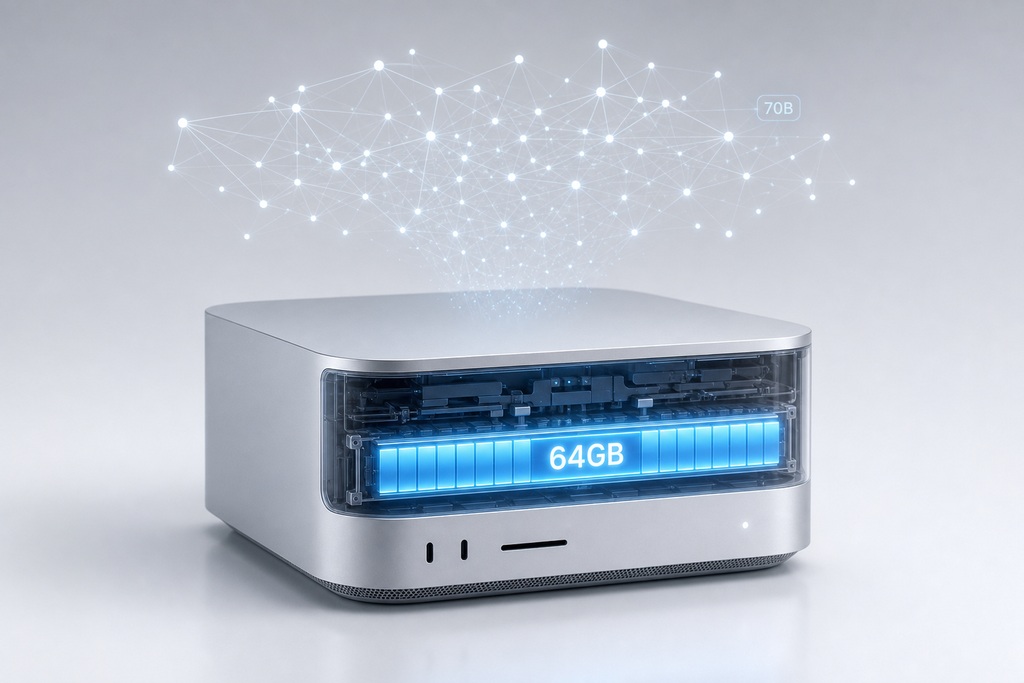
| 64GB | 70B at 4-bit | The sweet spot for serious local AI |
| 128GB+ | 100B+ and long contexts | Mac Studio territory |
For a Mac bought mainly for local AI, 64GB unified memory is the buy: memory is soldered and can't be upgraded, so the tier you pick is permanent. A 64GB Mac Studio is currently one of the most cost-effective single-box routes to running 70B-class models entirely on the GPU cores, without a tower full of graphics cards.
PC With a Discrete Graphics Card: Buy VRAM First
On a Windows or Linux PC, system RAM is secondary to VRAM, and a strong card with 32GB beats a weak card with 64GB for AI every time. Size the RAM to your build tier, then pour the rest of the budget into the biggest card you can afford.
| User tier | System RAM | Graphics-card VRAM |
|---|---|---|
| Budget / casual | 32GB | 12–16GB |
| Serious enthusiast | 64GB | 16–24GB |
| Large-model workstation | 64–128GB | 24–48GB+ |
Only buy 64GB for a GPU PC if you plan on CPU offloading for 70B models, heavy image or video workflows, or large document pipelines running alongside the model. If the whole model fits in VRAM, extra system RAM buys you nothing in speed.
Image Generation and Training
For Stable Diffusion, FLUX, and any real training, graphics-card VRAM becomes the ceiling well before system RAM does. 32GB of system memory is fine for ordinary Stable Diffusion and SDXL image generation, which is almost entirely GPU-bound. 64GB earns its keep with FLUX, large ControlNet chains, high resolutions, video generation, dataset prep, and CPU offloading: but it never makes up for a card short on VRAM. And no amount of system RAM makes full model training realistic: training needs far more memory than compressed inference, so a 64GB machine doesn't unlock it. LoRA fine-tuning on small models is the practical limit, and that too leans on GPU capacity.
Why More RAM Won't Make It Faster
Capacity and speed are different things: gigabytes decide what fits, memory bandwidth decides how fast text generates. Once a model fits in memory, adding more RAM does nothing for tokens per second: 64GB won't make an 8B model any quicker than 32GB does. What moves that number is bandwidth: DDR5 over DDR4, and a proper dual-channel setup.
There's a real catch with 64GB, too. Reaching it with four sticks, or two dense 32GB modules, can force consumer AM5 or Intel LGA1700 boards to drop memory speed to stay stable at DDR5-6000 and up. Slower memory means slower CPU-side generation, so 64GB isn't a pure win; a fast 32GB two-stick kit can out-generate a wobbly four-stick 64GB setup on CPU inference.
Cost and Upgrade Ceilings
Expect to pay roughly double for the jump, but treat every price as a moving range: the sources here disagree and DDR5 pricing shifts constantly, so check a live retail tracker before you buy.
- 32GB DDR5 kit (2x16GB): roughly $50–$120 depending on speed and source, as of the 2025 research.
- 64GB DDR5 kit (2x32GB): roughly $100–$280 over the same range.
- Past 64GB: 128GB or 192GB on a desktop generally means a Threadripper or Xeon workstation, which makes 64GB the practical consumer maximum.
- No do-overs on Macs and laptops: unified memory and most soldered laptop RAM can't be upgraded later, so buy the tier you'll need up front. Desktop RAM you can add later, which is why 32GB is a safe default on a tower.
Who Should NOT Buy 64GB
Skip the upgrade if you mainly run 7B–14B models on a capable discrete GPU and your desktop can take more RAM later — that money does more work as VRAM. Don't buy 64GB expecting small models to run faster; they won't, because bandwidth caps generation speed, not capacity. Don't buy it hoping to train large models or run 100B+ dense models — a 64GB machine unlocks neither. And if you're chasing maximum DDR5 speed on a consumer board, a two-stick 32GB kit is often the smarter build than a four-stick 64GB one. For everyone else on a Mac, a CPU-only rig, or a 70B target, 64GB is the right and safer call.
FAQ
Do I need 64GB RAM for AI?
No — if a discrete GPU runs your models and you stick to 7B–14B, 32GB is enough and VRAM is the real limit. Yes — if you're on an Apple Silicon Mac, running CPU-only inference, or you want 70B-class models, since the whole model then sits in system memory.
How much RAM is needed to run AI locally?
For 7B–8B models at 4-bit, 8–16GB works. 32GB comfortably handles up to ~30B models at 4-bit; 70B-class models need 64GB, since their weights alone run about 43GB. On a PC with a discrete GPU, VRAM capacity matters more than system RAM.
Is 64GB of RAM worth it over 32GB?
For Apple Silicon Macs, CPU inference, 70B models, or heavy RAG and multitasking, yes — 64GB is the difference between running those workloads and not. For a GPU builder running small-to-mid models who can add RAM later, it's money better spent on a bigger graphics card.
Do I need 32GB of RAM for AI?
32GB is the sensible minimum for a machine that'll do any real local AI, covering 7B–14B models at high precision and 30B models at 4-bit. 16GB only manages small models with little context to spare, so 32GB is where a serious local-AI build should start.
References
- llama.cpp quantization documentation — model weight sizes for Llama 3.1 (8B, 70B, 405B) at Q4_K_M. GitHub: ggml-org/llama.cpp
- llama.cpp README — CPU/GPU hybrid inference for models larger than available VRAM. GitHub: ggml-org/llama.cpp
- llama.cpp memory discussion (#9936) — context/KV cache and compute buffer allocation
- TechPowerUp GPU database — VRAM capacities for discrete graphics cards
Sources
See our editorial policy for how sources and updates are handled.